

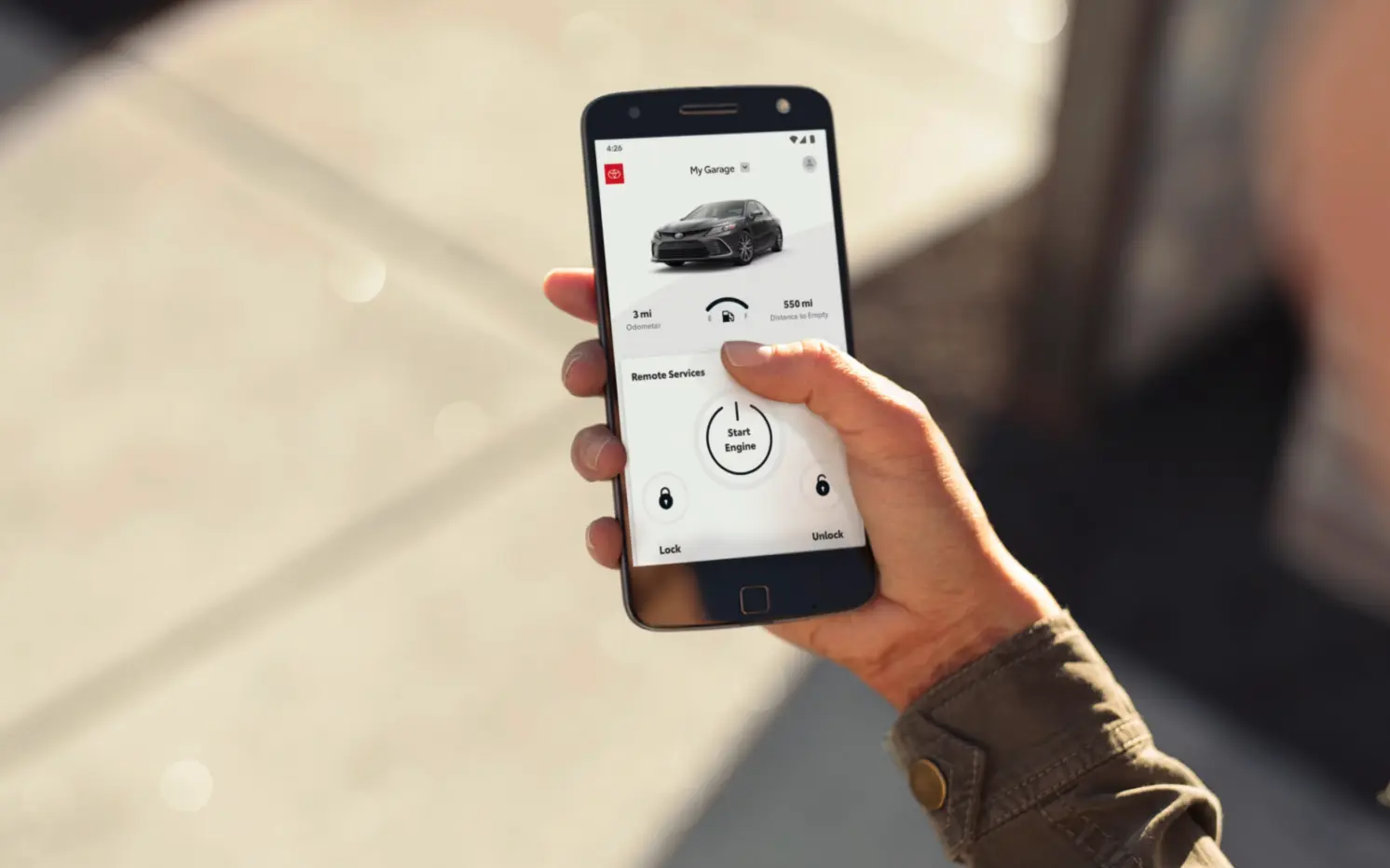
Setting up the Toyota app takes about five minutes once you download it, create an account, and link it to your vehicle using your VIN or a QR code from your glovebox, and once that link is complete you can view maintenance alerts, lock or unlock your doors on supported models, and check your vehicle’s status from your phone. Toyota of Bristol walks new and returning owners through this setup every week, and the short answer is this: download the Toyota app from the App Store or Google Play, sign in or create a Toyota account, add your vehicle by VIN, and confirm which connected services your specific model and trim support, since availability varies by vehicle and model year.
Consider a Bristol driver who just picked up a new RAV4 and wants to confirm their vehicle is locked before leaving for work each morning. That single feature, checking lock status remotely, is often the first thing new owners set up. We wrote this guide to walk you through downloading the app, linking your vehicle, understanding the difference between Remote Connect, Service Connect, Drive Connect, and Safety Connect, and fixing the most common setup issues we see at our dealership. By the end, you will know exactly how to get your Toyota app running and which features are worth activating for your daily routine, whether you just took delivery or have owned your Toyota for years and never got around to setting it up.
- How to Download and Set Up the Toyota App
- Remote Connect, Service Connect, and Trial Options
- Getting Toyota App Support Locally in Bristol and the Tri-Cities
- Common Toyota App Troubleshooting Tips
- How the Toyota App Works With ToyotaCare and Service Reminders
- Key Takeaways
- Frequently Asked Questions
- Get Help from Toyota of Bristol
How to Download and Set Up the Toyota App
Download and Create Your Account
We recommend starting on your phone’s app store rather than searching the web, since the official Toyota app is free and available for both Apple and Android devices. Here is the setup sequence we walk new owners through:
- Download the Toyota app from the App Store or Google Play.
- Open the app and choose to create an account or sign in with an existing Toyota account.
- Enter the basic information requested, including your name and contact details.
- Confirm your account through the verification email or text message the app sends.
- Accept the Connected Services Terms of Use before adding your vehicle.
For a Bristol driver who just picked up a new 2026 RAV4, we recommend completing account creation before leaving our lot, because our team can confirm your VIN and help you finish the first step while you are still with us. This same sequence, download, create an account, verify, and accept the terms, applies whether you drive a brand-new Toyota or one that is a few years old, as long as your model supports connected services. Our sales team can confirm connected services eligibility by VIN before you even open the app, which saves you a step if your model was built earlier in a given production year.
Link Your Vehicle
Once your account is active, linking your vehicle is the next step. You can add your Toyota using the 17-character VIN found on your dashboard, driver’s door jamb sticker, or registration, or by scanning the QR code often found in your glovebox or owner’s manual. After entering this information, the app confirms your vehicle and displays which connected services, Remote Connect, Service Connect, Drive Connect, or Safety Connect, are available for your specific model and trim.
For a returning Toyota owner who upgraded phones and needs to relink an existing vehicle, we recommend removing the old device from your Toyota account settings first, then reinstalling the app on the new phone and signing back in, since two active devices on the same vehicle can sometimes cause remote commands to lag or fail. Our team can confirm your VIN and registration status if the app does not recognize your vehicle on the first attempt. This step trips up more owners than any other part of setup, usually because the VIN was typed with a mixed-up character or the vehicle had not yet been fully registered with Toyota at the time of purchase.
| Setup Step | New Owner (Just Purchased) | Returning or Transferring Owner |
|---|---|---|
| Download the app | Do this before leaving our showroom | Reinstall if switching to a new phone |
| Create or sign into account | Create a new account | Sign into your existing account |
| Link vehicle by VIN | Confirm VIN with our team on delivery day | Remove the old vehicle first if it was sold or traded |
| Review available features | Try every trial feature from day one | Reconfirm which features carry over to the new vehicle |
| Remove old devices | Not applicable | Remove prior phone from account settings |
| Confirm notifications | Enable notifications during setup | Recheck phone notification permissions after reinstalling |
| Best For / Ideal Use Case | New owners should complete setup at delivery with our team present; returning owners switching phones or vehicles should clear old devices and vehicles from their account first. | |
Based on Toyota official website.
What You Can Do Once Setup Is Complete
Once setup is complete, what we see most new owners use first is the ability to check their vehicle’s lock status and last known location before leaving for work or after parking in a crowded lot. From there, our sales team walks customers through the fuller feature set, including remote start on supported models, vehicle health reports, and maintenance alerts tied to your actual mileage rather than a generic calendar reminder.
If you want to confirm exactly which connected features apply to your specific Toyota model and trim before you finish setup, our team can pull that information directly from your VIN and walk through it with you in person, whether that is during a delivery appointment or a separate visit weeks later.
Research Your Toyota’s Connected Features
Remote Connect, Service Connect, and Trial Options
Comparing the Connected Services
We put together the comparison below from the current Toyota connected services lineup so you can see what each one actually does before deciding what to activate.
| Service | What It Does | Included Trial | Best For |
|---|---|---|---|
| Remote Connect | Lock and unlock, remote start on supported models, vehicle locator, Digital Key on select models | Included trial period, length varies by model | Owners who want daily convenience and quick vehicle checks |
| Service Connect | Vehicle health reports, maintenance alerts tied to mileage | Included trial period, length varies by model | Owners who want to stay ahead of service needs |
| Drive Connect | Cloud navigation, live agent destination assist, voice commands | Included trial period, length varies by model | Owners who road-trip often or want live routing help |
| Safety Connect | Automatic collision notification, emergency assistance button, roadside assistance support | Included trial period, length varies by model | Owners who prioritize emergency response features |
| Digital Key (select models) | Phone-as-key vehicle access without a physical key | Availability varies by model and trim | Owners who want key-free entry |
| Owner Resources | Digital owner’s manual and warranty guides | Included at no extra cost | Any owner who wants quick reference documents |
| Best For / Ideal Use Case | New owners should activate Remote Connect and Service Connect first, since those two cover daily convenience and maintenance awareness; add Drive Connect or Safety Connect based on your driving habits. | ||
Based on Toyota official website.
Based on our experience at Toyota of Bristol, most owners get the most everyday value from Remote Connect and Service Connect, since those two features cover daily convenience and maintenance awareness without requiring you to learn a new navigation system. Drive Connect and Safety Connect add real value for road-trippers and safety-focused drivers, but they are less essential for a short daily commute.
Which Service Fits Your Situation
If you drive short daily errands, then Remote Connect alone likely covers what you need. If you want maintenance reminders tied to your real mileage, then Service Connect keeps you ahead of service visits. If you take regular road trips across the Tri-Cities or beyond, then Drive Connect’s live routing support is worth activating. If emergency response and roadside assistance matter most to you, then Safety Connect should be a priority.
For a Kingsport commuter who mainly wants to confirm their car is locked from their desk, we recommend Remote Connect because it covers that single need without adding features you will not use daily. For a Johnson City family tracking maintenance across two Toyota vehicles, we recommend Service Connect because mileage-based alerts help you stay ahead of service instead of guessing from a sticker on the windshield. For an Abingdon driver who frequently crosses into Southwest Virginia for work, we recommend Drive Connect because live destination assist and cloud navigation hold up better than a phone’s map app in areas with inconsistent signal. Many owners end up activating more than one service once they see how the features complement each other during daily driving.
We invite you to stop by our showroom at 3045 W State St in Bristol if you want help activating any of these features in person rather than working through settings menus on your own. Our team can pull up your VIN, confirm exactly which connected services your Toyota supports, and walk through the app with you step by step. If you already own a Toyota and are not sure whether your trial period is still active, we can check that for you the same day. We also help owners decide which services are worth keeping active once a trial period ends, based on how you actually drive rather than a generic recommendation. Whether you need five minutes of help or a full walkthrough, call us or stop in and we will make time for it. We built this process to be simple, not something you have to figure out alone.
Getting Toyota App Support Locally in Bristol and the Tri-Cities
Local Connectivity and What to Expect
Here in the Tri-Cities, we see Remote Connect and Safety Connect work fastest in Bristol, Kingsport, and Johnson City proper, where cellular coverage is strongest, while owners driving mountain routes near Abingdon or rural stretches near Elizabethton may notice a short delay before a remote command confirms, since the app relies on your vehicle’s cellular connection rather than your phone’s.
| Area | Connectivity Note | Recommended Tip |
|---|---|---|
| Bristol city center | Generally strong cellular coverage | Remote commands typically respond within seconds |
| I-81 corridor toward Kingsport | Coverage mostly consistent, occasional dips in low areas | Allow a few extra seconds for remote start confirmation |
| Mountain routes near Abingdon, VA | Coverage can vary with elevation and terrain | Try the command again once you reach a clearer signal area |
| Rural stretches near Elizabethton and Blountville | Coverage can be more limited | Vehicle location and lock status still sync once signal returns |
For a Kingsport commuter whose remote start sometimes takes a few extra seconds to confirm on I-81, we recommend simply waiting a moment before repeating the command, since the delay usually reflects a brief signal gap rather than an app problem. For an Elizabethton owner unsure whether their specific model even supports connected services, we recommend asking our team to check availability by VIN before assuming a feature is missing or broken. A quick VIN check takes our team less than a minute and removes the guesswork entirely.
Our team has helped owners across Bristol, Kingsport, Johnson City, Abingdon, and Elizabethton get their Toyota app running correctly for years, and that local troubleshooting experience is part of why so many owners come back to us with app questions instead of guessing on their own. If you are enrolled in our Toyota of Bristol Advantage Plan, our service team can also confirm how your app’s maintenance alerts line up with your actual service history. We recommend bringing your phone with the app open when you visit for service, so our technicians can confirm everything is syncing correctly in the same visit. You can request an appointment through toyotaofbristol.com or call our showroom directly. Either way, we treat app questions the same way we treat any other ownership question, with a direct answer, not a runaround. We want your Toyota app working the way it should before you leave.
Common Toyota App Troubleshooting Tips
| Issue | Likely Cause | What to Try |
|---|---|---|
| App shows a vehicle you no longer own | Old vehicle was not removed after a trade-in or sale | Remove the vehicle from your account settings, then add your current Toyota |
| Remote commands are slow or fail | Weak cellular signal at your vehicle’s location | Wait a moment and try again once you are in a stronger coverage area |
| App will not recognize your VIN | VIN entered incorrectly or vehicle not yet registered | Double check each character, or ask our team to confirm registration |
| Notifications are not arriving | Notification permissions disabled on your phone | Check your phone’s notification settings for the Toyota app |
| Two devices show conflicting status | Vehicle linked to more than one active device | Remove the older device from your account settings |
Based on Toyota official website.
For an owner whose app still shows a vehicle they traded in or sold months ago, we recommend removing that vehicle from your account settings before adding your current Toyota, since leaving an old vehicle linked can cause confusing notifications and status updates that have nothing to do with the car you actually drive now. If none of these steps resolve the issue, our team can look at your account directly rather than leaving you to troubleshoot alone. We would rather spend five minutes checking your account in person than have you stuck cycling through the same settings menu at home.
Browse Our New Toyota InventoryHow the Toyota App Works With ToyotaCare and Service Reminders
Service Connect’s maintenance alerts are most useful when they line up with what your ToyotaCare coverage already includes, since the app can remind you a service is due while ToyotaCare, when applicable, helps cover the visit itself. Here is how we recommend using both together:
- Check your app’s vehicle health report before scheduling service, so you arrive with a clear picture of what is due.
- Match app alerts to your ToyotaCare coverage window, since early visits are often included at no extra cost.
- Use the app to confirm your service history, which helps our technicians move faster at check-in.
If your maintenance alert and your ToyotaCare window line up, then scheduling that visit costs you nothing extra in most cases. If your alert appears after your ToyotaCare coverage ends, then we will walk through pricing before any work begins. If you are unsure which applies to your vehicle, then bringing your app to your appointment lets our team confirm it on the spot.
For a Johnson City family managing two Toyota vehicles on different service schedules, we recommend checking the app before each visit rather than relying on memory, since mileage-based alerts account for how each vehicle is actually driven rather than assuming both cars age the same way. This habit alone prevents most of the missed-service surprises we see at check-in.
See Your Toyota’s ToyotaCare CoverageKey Takeaways
- Setup takes three steps: download the app, create your account, and link your vehicle by VIN.
- Remote Connect and Service Connect cover most owners’ daily needs; Drive Connect and Safety Connect add value for road-trippers and safety-focused drivers.
- Mountain routes near Abingdon and rural stretches near Elizabethton may show a short delay before remote commands confirm.
- Removing an old vehicle or device from your account fixes most confusing notifications after a trade-in or phone upgrade.
- Matching app maintenance alerts to your ToyotaCare window can help you schedule service at no extra cost.
Toyota App Questions Bristol Drivers Ask
Is the Toyota app free to use?
The Toyota app itself is free to download and use for basic account and vehicle information. Many connected services, including Remote Connect, Service Connect, Drive Connect, and Safety Connect, come with an included trial period on eligible models, and a subscription is required to keep using select features after that trial ends. We recommend checking your app’s Multimedia Settings screen for your exact trial length and included services, since these vary by model and model year.
What is the difference between Remote Connect and Service Connect?
Remote Connect focuses on daily convenience, including locking and unlocking your doors, remote start on supported models, and locating your vehicle in a parking lot. Service Connect focuses on ownership upkeep, delivering vehicle health reports and maintenance alerts tied to your actual mileage rather than a generic calendar reminder. Most owners find value in activating both, since one handles daily use and the other keeps you ahead of scheduled service.
Why won’t my Toyota app connect to my vehicle?
This is one of the most common questions we hear from owners who recently traded vehicles or switched phones, and it almost always comes down to an old vehicle or device still linked to the account. Removing the previous vehicle from your account settings, then re-adding your current Toyota by VIN, resolves most connection issues. If the app still will not recognize your VIN after that, our team can confirm your vehicle’s registration status directly.
Can I use the Toyota app on more than one phone?
You can sign into your Toyota account on more than one device, but keeping two active devices linked to the same vehicle can sometimes cause remote commands to lag or show conflicting status. We recommend removing an older phone from your account settings once you switch devices to keep everything running smoothly.
Get Help from Toyota of Bristol
We are here to help you get your Toyota app working the way it should, whether you just took delivery or have owned your Toyota for years. Stop by our showroom at 3045 W State St in Bristol, TN, and our team will walk through setup, feature activation, or troubleshooting with you in person. If you are enrolled in our Toyota of Bristol Advantage Plan or already follow your ToyotaCare schedule, bring your phone with the app open at your next visit so we can confirm everything is syncing correctly. We proudly support drivers across Bristol, Kingsport, Johnson City, Abingdon, Blountville, and Elizabethton with the same direct, in-person help we would want if the roles were reversed. If you have a specific Toyota app question right now, call us or stop in and we will find you an answer today. We would rather solve it in person in a few minutes than have you searching through settings menus on your own tonight, and that same offer stands whether you bought your Toyota from us or somewhere else entirely.
Visit Our Service CenterRelated Articles
Keep reading more Toyota ownership guides, service tips, and technology walkthroughs from Toyota of Bristol.
Ownership Guide
Is ToyotaCare Worth It in Bristol?
See what ToyotaCare covers, how long it lasts, and how Bristol and Tri-Cities owners can get the most from it.
Service Comparison
Toyota Service Care vs ToyotaCare in Bristol, TN
Compare what ToyotaCare includes versus paid Service Care and ToyotaCare Plus options for Tri-Cities owners.
Maintenance Guide
How Often Should You Change Your Toyota Oil?
See how oil intervals, tire rotation, and inspections fit together in your Toyota’s factory maintenance schedule.
Tire Care Guide
How Often Should You Rotate Toyota Tires in Bristol, TN?
See rotation intervals, warning signs, and how Tri-Cities driving conditions affect tire wear.
Connect with us


